Hyper-V WMI Using PowerShell Scripts – Part 5

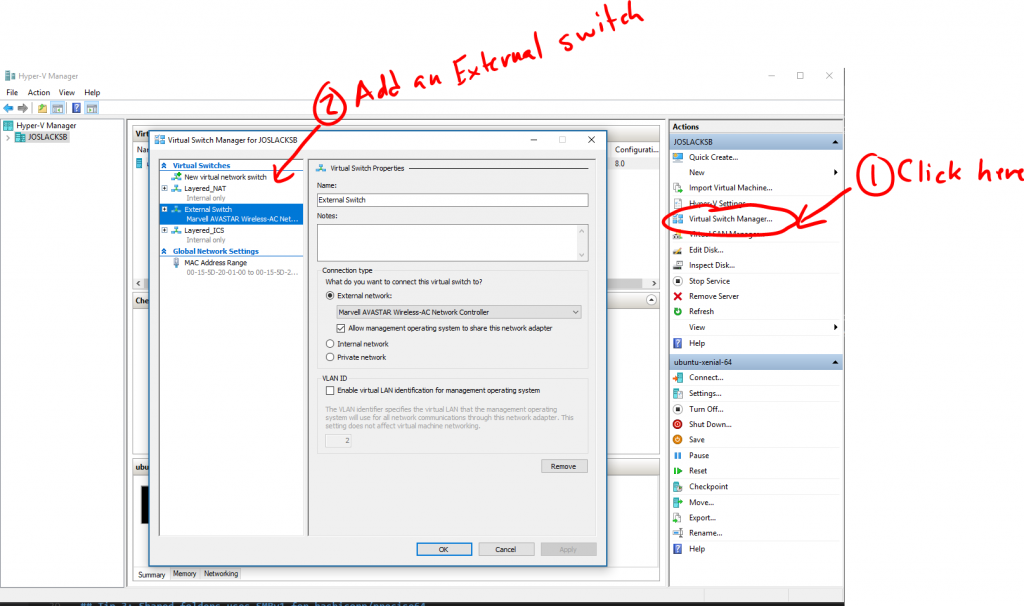
I hope everyone had a great Memorial Day weekend – we had a four day weekend on the Hyper-V team which was excellent!  In this post I am going to show how to create a new virtual switch attached to an external network.  I’ll start with a complete script and then take it apart and explain what each part is doing.

$VirtualSwitchService = get-wmiobject -class "Msvm_VirtualSwitchManagementService" -namespace "root\virtualization"
$ReturnObject = $VirtualSwitchService.CreateSwitch([guid]::NewGuid().ToString(), "New External Switch", "1024","")

#Create New Virtual Switch
$CreatedSwitch = [WMI]$ReturnObject.CreatedVirtualSwitch

#Create Internal Switch Port
$ReturnObject = $VirtualSwitchService.CreateSwitchPort($CreatedSwitch, [guid]::NewGuid().ToString(), "InternalSwitchPort", "")
$InternalSwitchPort = [WMI]$ReturnObject.CreatedSwitchPort

#Create External Switch Port
$ReturnObject = $VirtualSwitchService.CreateSwitchPort($CreatedSwitch, [guid]::NewGuid().ToString(), "ExternalSwitchPort", "")
$ExternalSwitchPort = [WMI]$ReturnObject.CreatedSwitchPort

$ExternalNic = get-wmiobject -namespace "root\virtualization" -Query "Select * From Msvm_ExternalEthernetPort WHERE IsBound=False"

#Call SetupSwitch
$Job = $VirtualSwitchService.SetupSwitch($ExternalSwitchPort, $InternalSwitchPort, $ExternalNic, [guid]::NewGuid().ToString(), "InternalEthernetPort")
while (([WMI]$Job.Job.JobState -eq 2) -or ([WMI]$Job.Job.JobState -eq 3) -or ([WMI]$Job.Job.JobState -eq 4)) {Start-Sleep -m 100}
[WMI]$Job.Job

Before explaining the elements of the script, I think it’s important to explain a little about Hyper-V’s networking model.  Hyper-V’s networking model attempts to be a similar to a real network, there are virtual switches, virtual switch ports and network adapters.  When you create a new external virtual network you are actually creating a virtual switch, an internal and external switch port and a virtual network adapter on the host.

So let's look at the script above section by section.

Section 1 - Creating The Switch

$VirtualSwitchService = get-wmiobject -class "Msvm_VirtualSwitchManagementService" -namespace "root\virtualization"
$ReturnObject = $VirtualSwitchService.CreateSwitch([guid]::NewGuid().ToString(), "DemoExternal", "1024","")

Create New Virtual Switch
$CreatedSwitch = [WMI]$ReturnObject.CreatedVirtualSwitch

This section get's the Msvm_VirtualSwtichManagmentService, this is similar to other management service classes like msvm_imagemanagmentsevice.  The second line creates the switch, the first parameter to this function is the switch name, typically a guid is a good unique name, the second parameter is the friendly name (what you will see in the UI), the third parameter is the number of learnable addresses in the switch, the last parameter the AzMan scope name (I'll talk more about those in a later post).  The third line retrieves the WMI object for the created switch.


Section 2 - Creating Switch Ports

#Create Internal Switch Port
$ReturnObject = $VirtualSwitchService.CreateSwitchPort($CreatedSwitch, [guid]::NewGuid().ToString(), "InternalSwitchPort", "")
$InternalSwitchPort = [WMI]$ReturnObject.CreatedSwitchPort

#Create External Switch Port
$ReturnObject = $VirtualSwitchService.CreateSwitchPort($CreatedSwitch, [guid]::NewGuid().ToString(), "ExternalSwitchPort", "")
$ExternalSwitchPort = [WMI]$ReturnObject.CreatedSwitchPort

This section creates the internal and external switch ports, think of these as the ports on a physical switch that you would attach to your PC or Modem.  In both cases we are calling the CreateSwitchPort method.  The first parameter is switch we created in the previous section, the second parameter is the switch port name again we using a guid, the third the friendly name this name does not have to be unique and can be anything you want, and the final parameter again is the AzMan scope.  We again retrieve the created switch port's as WMI objects.


Section 3 - Retrieving External Ethernet Connection

$ExternalNic = get-wmiobject -namespace "root\virtualization" -Query "Select * From Msvm_ExternalEthernetPort WHERE IsBound=False"

This section retrieves the external Ethernet port think of this as the port on the modem or the actual network adapter on the physical machine.  This query should return only one adapter, in the query above I select all adapters on the machine that are not already bound to a switch (hence the IsBound=False) so if I had two network adapters that not bound this query would need to be more specific.  You'll need to figure out what your criteria will be try running "get-wmiobject -namespace "root\virtualization" -Query "Select * From Msvm_ExternalEthernetPort" this will return all of the information available to query against.

Section 4 - Bringing It All Together

$Job = $VirtualSwitchService.SetupSwitch($ExternalSwitchPort, $InternalSwitchPort, $ExternalNic, [guid]::NewGuid().ToString(), "InternalEthernetPort")

 
while (([WMI]$Job.Job.JobState -eq 2) -or ([WMI]$Job.Job.JobState -eq 3) -or ([WMI]$Job.Job.JobState -eq 4)) {Start-Sleep -m 100}
[WMI]$Job.Job

This final section bring's it all together.  The SetupSwitch method takes the WMI objects for the switch, switch ports, external Ethernet port as well as a name and friendly name and binds all the switch port's together.  Up to this point if you looked in the Hyper-V Network Manger you would see your switch but it would be a private switch; after this it will be an external switch.  The last two lines just wait for the returned WMI object to complete and then prints out the object.

That's it!  You now have an external network.


- Taylor Brown
- Hyper-V Test Team

image

Published 26 May 08 11:31 by Taylorb
Filed under: , ,

Comments

# James O'Neill's blog said on May 28, 2008 6:58 AM:

If you've read my post on adding disks to a Virtual machine , the techniques here should already feel

Anonymous comments are disabled

About Taylorb

I have been working on virtualization solutions at Microsoft for over 4 years, I started on the team shortly after Microsoft acquired Connectix in 2003. I worked on Virtual Server where I tested a verity of things but focused on networking, serial, and power management. I currently lead the Hyper-V End-to-End team, we are responsible for ensuring the end to end functionality of Hyper-V, this includes working with customers/partners/oem’s/etc… to ensure we are testing and shipping the best quality software possible. I have also worked on the Microsoft 1394 (firewire) team, ACPI (power management) team, and did a brief stent on the Microsoft Smart Watch team as a contractor.

Search

This Blog

Syndication

Page view tracker