Information and announcements from Program Managers, Product Managers, Developers and Testers in the Microsoft Virtualization team.
I thought you would never ask
Replication State Refers to the current state of the replicating VM. The set of values are captured in Q3 under the UI column, in the previous post Replication Type Indicates whether the VM a Primary VM or a Replica VM Current Primary Server Provides the FQDN of the server on which the primary VM resides Current Replica Server Provides the FQDN of the destination server on which the replica VM resides Replication Health Refers to the health of the replicating VM. The set of possible values are Normal, Warning or Critical. From Time The start time for the monitoring interval To Time This calls out the current time or time at which this window was launched
The statistics below are collected between ‘From Time’ and ‘To Time’
Average size The average size of the replica file (sent in every replication interval) Maximum size Maximum size of the replica file Average Latency Average time taken to transfer the replica file in a replication interval Errors encountered Number of errors encountered (eg: network disconnects, resynchronization etc.) Successful replication cycles Hyper-V Replica attempts to send the replica file every 5 mins (=>the number of replication cycles in an hour is 12). This counter captures the number of successful replication attempts.
2. On the primary VM:
3. On the Replica VM:
4. Buttons:
Q2: Some follow-up questions – what is the replication interval? How can I change it?
Hyper-V Replica tracks the writes to the VM in a log file. This log file is sent every 5mins which is also called the replication interval. Administrators cannot configure this interval.
Due to network or storage issues or due to excessive churn in the VM, the replica file transfer might take more than 5mins to reach the destination server (and applied to the replica VM). Hyper-V Replica has inbuilt semantics to handle such situations by delaying the transfer of the next replica file. This impacts the ‘Successful Replication Cycles’ and Average Latency statistics.
Q3: What is the Monitoring Interval and Monitoring Start Time and how do I get/set this?
The monitoring interval is a server level attribute which refers to the interval for which the replication statistics are captured and computed. This attribute can be viewed from Get-VMReplicationServer
PS C:\Windows\system32> Get-VMReplicationServer | select monitoringinterval, monitoringstarttime
The MonitoringInterval refers to the time interval for which the replication statistics should be collected. By default this is set to 12 hrs. The minimum value which can be set is 1hr and the maximum value is 7 days. It is recommended that a reasonably high value is used as smaller intervals might lead to incorrect conclusions.
The MonitoringStartTime refers to the time at which Hyper-V Replica should start monitoring the replicating VM. The input is denoted in a 24hr clock and is set to 9AM local time by default.
Both these values can be changed using the Set-VMReplicationServer. Eg: To modify the Monitoring interval to 12hrs and start time to 6AM, issue the following cmdlet:
Set-VMReplicationServer -MonitoringStartTime 06:00:00 -MonitoringInterval 12:00:00
In this example, when a VM is enabled for replication at 2pm, statistics are collected from 2pm to 6pm on the same day and health is reflected for this interval. The statistics are then reset and collected 6pm to 6am the next day and health is reflected for this interval.
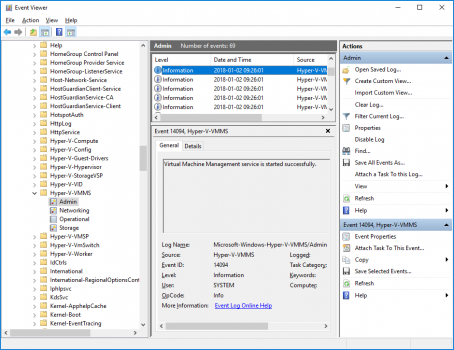
Yes. In the event viewer, under the Hyper-V VMMS node, an Information message is recorded. The event ID for this is 29174.
Q5: Is the health attribute preserved when the VM migrates?
Yes, when the VM migrates from one node to another, the replication statistics are preserved and used in the new node.
Q6: I manage a N-node-cluster with many replicating VMs, I (obviously) cannot click on each VM to know it’s health. Is there an easier way to manage from UI?
Yes! From the Failover Cluster Manager you can run a query to get VMs with a specific replication Health. Under Roles, click on ‘Add Criteria’, choose ‘Replication Health’ and specify the criteria (Critical/Normal/Warning)
Q7: Is there any such provision in the Hyper-V Manager?
You can add the column ‘Replication Health’ from the Add/Remove Column option in Hyper-V Manager
Q8: Is there a PowerShell cmdlet to get all this information?
Yup, Measure-VMReplication captures the health and state related information
PS E:\Windows\system32> Measure-VMReplication -vmname SampleVM | select ReplicationHealth, ReplicationHealthDetails | fl
ReplicationHealth : Critical
ReplicationHealthDetails : {Replication for virtual machine 'SampleVM' is in error. Fix the error(s) and resume
replication., More than 20 percent of replication cycles have been missed for virtual
machine 'SampleVM'. Replication might be encountering problems., Replica virtual machine
'SampleVM' is behind the primary by more than an hour.}
Yes, using the cmdlet, you can set up custom warnings, send mail, run it frequently from Task scheduler etc. The options are limitless.
Our resident PS expert Rahul Razdan, has this nifty PS script which sends out a mail detailing the health of the replicating VM.
Add-PSSnapin Microsoft.Exchange.Management.Powershell.Admin -erroraction silentlyContinue
##### Configuration Section Starts #####
$SMTPName = "TTExchange.TailspinToys.com"
$EmailMessage = new-object Net.Mail.MailMessage
$SMTPServer = new-object Net.Mail.SmtpClient($SMTPName)
$EmailMessage.From = "TonyV@tailspintoys.com"
$EmailMessage.To.Add("JimH@tailspintoys.com")
$EmailMessage.To.Add("TonyV@tailspintoys.com")
##### Configuration Section Ends#####
#Build a nice file name
$date = get-date -Format M_d_yyyy_hh_mm_ss
$csvfile = ".\AllAttentionRequiringVMs_"+$date+".csv"
#Build the header row for the CSV file
$csv = "VM Name, Date, Server, Message `r`n"
#Find all VMs that require your attention
$VMList = get-vm | where {$_.ReplicationHealth -eq "Critical" -or $_.ReplicationHealth -eq "Warning"}
#Loop through each VM to get the corresponding events
ForEach ($VM in $VMList)
{
$VMReplStats = $VM | Measure-VMReplication
#We should start getting events after last successful replication. Till then replication was happening.
$FromDate = $VMReplStats.LastReplicationTime
#This string will filter for events for the current VM only
$FilterString = "<QueryList><Query Id='0' Path='Microsoft-Windows-Hyper-V-VMMS-Admin'><Select Path='Microsoft-Windows-Hyper-V-VMMS-Admin'>*[UserData[VmlEventLog[(VmId='" + $VM.ID + "')]]]</Select></Query></QueryList>"
$EventList = Get-WinEvent -FilterXML $FilterString | Where {$_.TimeCreated -ge $FromDate -and $_.LevelDisplayName -eq "Error"} | Select -Last 3
#Dump relevant information to the CSV file
foreach ($Event in $EventList)
If ($VM.ReplicationMode -eq "Primary")
$Server = $VMReplStats.PrimaryServerName
}
Else
$Server = $VMReplStats.ReplicaServerName
$csv +=$VM.Name + "," + $Event.TimeCreated + "," + $Server + "," + $Event.Message +"`r`n"
#Create a file and dump all information in CSV format
$fso = new-object -comobject scripting.filesystemobject
$file = $fso.CreateTextFile($csvfile,$true)
$file.write($csv)
$file.close()
#If there are VMs in critical health state, send an email to me and my colleague
If ($VMList -and $csv.Length -gt 33)
$Attachment = new-object Net.Mail.Attachment($csvfile)
$EmailMessage.Subject = "[ATTENTION] Replication requires your attention!"
$EmailMessage.Body = "The report is attached."
$EmailMessage.Attachments.Add($Attachment)
$SMTPServer.Send($EmailMessage)
$Attachment.Dispose()
$EmailMessage.Subject = "[NORMAL] All VMs replicating Normally!"
$EmailMessage.Body = "All VMs are replicating normally. No further action is required at this point."
The script which works for a standalone node can be easily extended to query across a cluster (using Get-ClusterNode). Give it a shot in your deployment!
In summary, it is extremely important to monitor the health of the replicating VMs. The system has inbuilt retry semantics to address transient issues (eg: network outage) but there are certain events which require your intervention (eg: disk issues). Analyzing the replication health from time to time will help you identify and fix these issues.
Great !
But PS script doesnt work because Get-WinEvent function doesn't return LevelDisplayName in Windows 2012 RC
$Paracetmol: What is the exact error you are getting?
Not sure why you think LevelDisplayName is not returned by Get-WinEvent in Windows 2012 RC. Here is the output of the Get-WinEvent part of the above script on one of my Windows 2012 RC machines:
PS C:\Windows\system32> Get-WinEvent -FilterXML $FilterString | Where {$_.TimeCreated -ge $FromDate -and $_.LevelDisplayName -eq "Error"} | Select -Last 3
ProviderName: Microsoft-Windows-Hyper-V-VMMS
TimeCreated Id LevelDisplayName Message
----------- -- ---------------- -------
7/10/2012 1:01:48 AM 32022 Error Hyper-V could not replicate changes
PS C:\Users\Administrator> Get-WinEvent -LogName Microsoft-Windows-Hyper-V-VMMS-Admin -MaxEvents 10
06/08/2012 12:39:43 29174
06/08/2012 12:28:45 32315
06/08/2012 12:28:45 32552
06/08/2012 12:23:45 32315
06/08/2012 12:23:45 32552
06/08/2012 12:22:45 32315
06/08/2012 12:22:45 32022
06/08/2012 12:22:45 29312
06/08/2012 12:02:17 32571
06/08/2012 09:00:00 29174
PS C:\Users\Administrator>
Good script and works for critical but doesn't seem to return any warnings.
If I pause replication on both sides it's a warning (on both sides) and doesn't get returned in the file, only if I then start replication on the replica server does the status change to critical on the other side then it gets returned.
for my problem its a culture problem:
social.technet.microsoft.com/.../12467b47-c1e6-4208-bbbf-9fec9b4b8111
I also had problem with not recieving warning emails on replication status.
All i wanted was the name on the server and its last replication time so i modified the below script for that purpose.
$SMTPName = "mail.domain.com.au"
$EmailMessage.From = "server-name@domain.com.au"
$EmailMessage.To.Add("email-address1@domain.com.au")
##### Configuration Section Ends #####
$csvfile = "c:\!Scripts\Logs\Hyper-V-Attention-Requiring-VMs.csv"
$csv = "VM Name,Last Replication Time `r`n"
$VMList = Get-VM | Where-Object ReplicationHealth -NE "Normal"
$VMReplStats = $VMList | Measure-VMReplication
#Format the date
$FromDateFormated = $FromDate.ToString("dd.MM.yyyy hh:mm:ss tt")
$csv +=$VM.Name + "," + $FromDateFormated + "`r`n"
#echo $csv
$EmailMessage.Subject = "[CRITICAL] Replication requires your attention!"
$EmailMessage.Body = $csv
# $EmailMessage.Subject = "[NORMAL] All VMs replicating Normally!"
# $EmailMessage.Body = "All VMs are replicating normally. No further action is required at this point."
# $SMTPServer.Send($EmailMessage)
Jed thanks;
your script works well, however it also reports on VM that are running which are not part of the replica, as being in warning state.
Can you possibly modify to exclude running Hyper-V VMs?
Thanks
There where a few problems with that scripts, the below will work better inc not reporting VMs that are running which are not part of the replica.
Let me know if you have any other issues.
Jed
###
#### Script variables
# Specify date format
$DateFormat = "dd.MM.yyyy hh:mm:ss tt"
$VMList = Get-VM | Where-Object ReplicationHealth -NE "Normal" | Where-Object ReplicationHealth -NE "NotApplicable"
#Get the LastReplicationTime and format it to AUS
$FromDate = $VMReplStats.LastReplicationTime.ToString($DateFormat)
#add line to csv
$csv += $VM.Name + "," + $FromDate + "`r`n"
echo $csv
#if there are vms in critical health state, send an email to me and my colleague
if ($VMList -and $csv.length -gt 33)
# Get client specific SMTP info
$SMTP_From = "server-name@domain.com.au"
$EmailMessage.From = $SMTP_From
$EmailMessage.To.Add("email-address2@domain.com.au")
$attachment = new-object net.mail.attachment($csvfile)
$EmailMessage.subject = "[CRITICAL] replication requires your attention!"
$EmailMessage.body = $csv # Add csv content to body as well
$EmailMessage.attachments.add($attachment)
$SMTPServer.send($EmailMessage)
$attachment.dispose()